Your WooCommerce orders, the truth behind every ROAS.
Connect WooCommerce with Adverti Chat and bring your real orders, cancellations, and fulfillment into one view. This is the data that lets Adverti read every channel against the revenue you actually keep. Read-only, brand-authorized, live in minutes.

Campaign data flows into Adverti · read-only
The order data that ROAS should run on
Your ad platforms count placed orders. Adverti reads your WooCommerce orders, cancellations, and refunds, so every channel is measured on the revenue that actually stayed.
See the revenue you actually keep
Bring real orders, cancellations, and refunds into view, so revenue is what survived, not what was placed at checkout.
See your Reality Gap
See the gap between what your ad platforms report and what your store actually delivered, in one clear number.
Read every channel on real orders
Every channel’s ROAS is read against your WooCommerce orders, so you know which spend turned into revenue you kept.
Catch COD and RTO leakage
Combined with your delivery data, see where cash-on-delivery failures and returns quietly eat into revenue, instead of hiding behind a placed-order figure.
One view across every channel
Your store sits with Meta, Google, Amazon, and Pinterest, so ad spend and real revenue live in the same picture.
Ask the AI analyst
Ask plain-language questions about your orders and revenue and get answers grounded in your own live data, with every figure labelled by confidence.
WooCommerce is the foundation
Your WooCommerce orders are the revenue truth the engine reads every channel against. Connectors are not the product. The engine that reconciles them is.


Adverti engine
Reads your ad spend against real WooCommerce orders using documented keys and India-specific COD and RTO handling. Not an AI guess.
How to connect WooCommerce with Adverti
Connecting installs a small WordPress plugin that hands Adverti a read-only Secret Key. No code, and it takes a few minutes.
Go to Brands in Adverti
Log in to your Adverti account and go to Brands — the Brands section in the left sidebar.

Select the brand you want to connect
Open the brand you want to connect and go to its Integrations. You can do this through Edit, or while continuing the brand setup.

Continue to Integrations
On the ad accounts step of the brand setup, click Continue to reach Integrations.
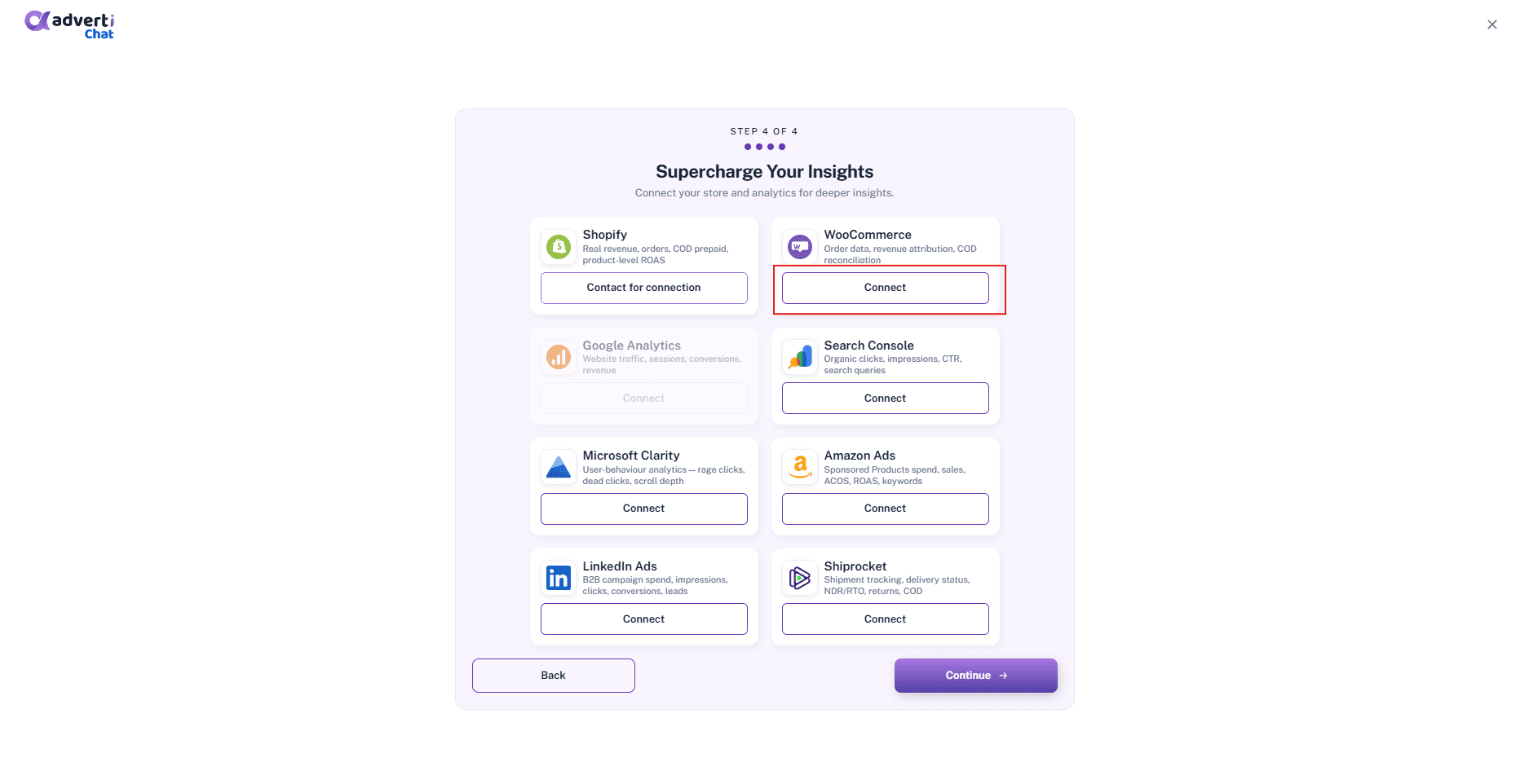
Find WooCommerce and click 'Connect'
Find the WooCommerce card under your store connectors and click Connect.
Confirm in the pop-up
A confirmation pop-up appears. Click Connect again to continue.

Download the Adverti Chat plugin
Click Download Plugin to save the Adverti Chat plugin as a ZIP file to your computer.

Open WordPress admin, then Plugins, then Add New Plugin
In your WordPress admin, go to Plugins and select Add Plugin.

Upload the plugin ZIP and click 'Install Now'
Click Upload Plugin, choose the ZIP file you downloaded, and click Install Now.

Click 'Activate Plugin'
Once the plugin installs, click Activate Plugin.

Open the Adverti Chat plugin in WordPress
In the WordPress left-hand menu, open the Adverti Chat plugin.

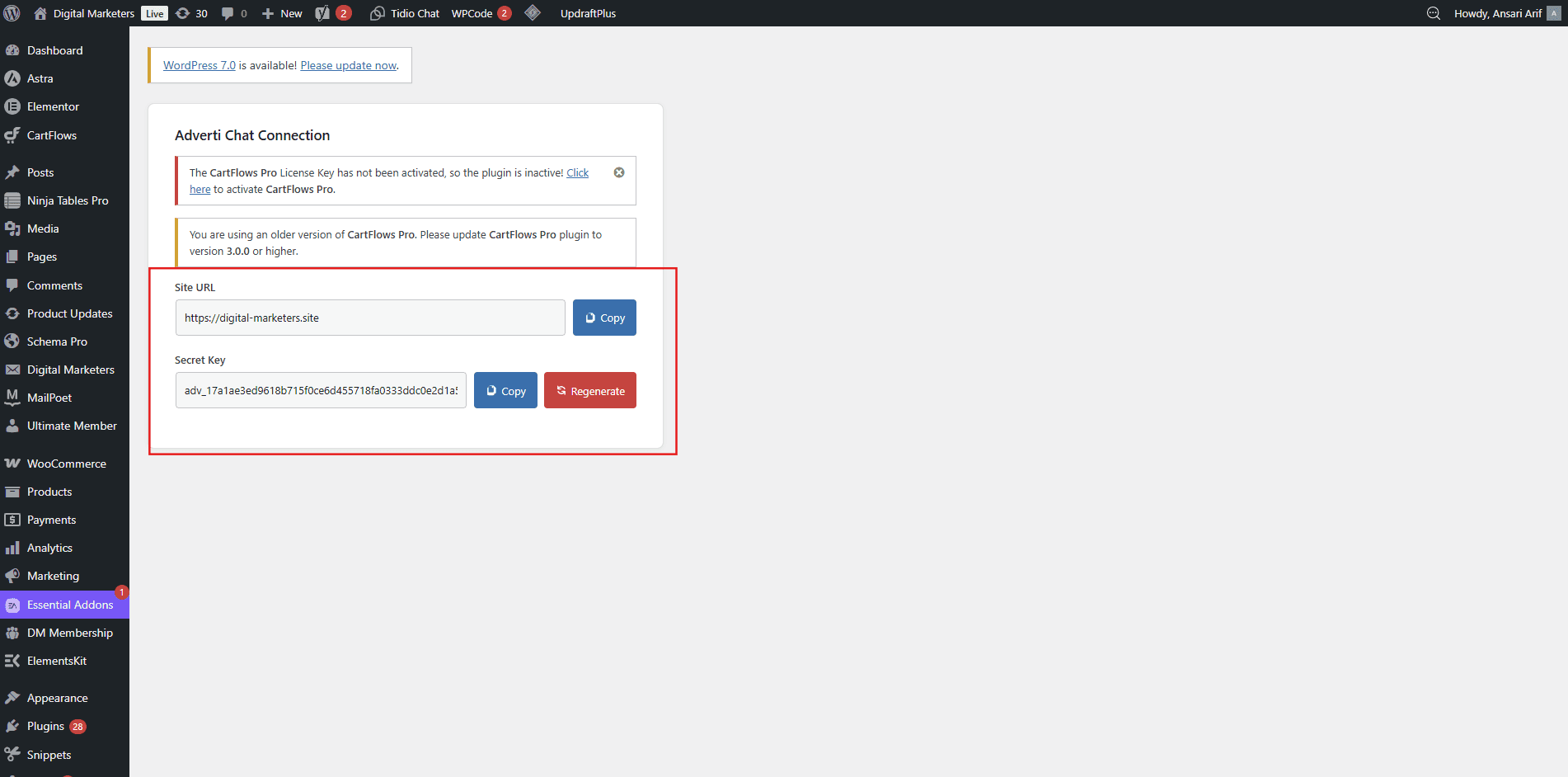
Copy the Secret Key and Site URL
On the plugin’s connection screen, copy the Site URL and Secret Key fields.
Note: Keep this key private. It authorizes Adverti to read your store data.
Return to Adverti and click 'Continue'
Back in Adverti, since the plugin is already installed, click Continue.

Enter your Site URL and Secret Key, then click 'Connect'
Paste your Store URL and Secret Key into the WooCommerce card in Adverti, then click Connect.

Your WooCommerce data is now connected
The WooCommerce icon appears in Adverti's top navigation and your order data starts flowing in. Your ad channels can now be read against real orders.
Ask the AI analyst about your orders
Ask Adverti's AI Analyst questions about your orders, revenue, and where it leaks directly from AI Chat. That's it, you are set up.
Questions, answered
Is the connection read-only?
Yes. Adverti reads your orders and fulfillment through the WordPress plugin's read-only Secret Key. It never edits products, orders, inventory, or your storefront.
What data does Adverti pull from WooCommerce?
Order, cancellation, refund, and fulfillment data, such as order value, status, payment method including COD, and delivery state, which Adverti reads your ad spend against.
Do you use my customer data?
Adverti reads only what is needed to line orders up against your ad spend and delivery. It does not use your customer list for anything else.
Do I need to be a developer?
No. You install and activate a WordPress plugin, then copy a Secret Key into Adverti. There is no code to write.
Why does connecting WooCommerce matter for my ROAS?
Your ad platforms count placed orders. Adverti reads those against your real WooCommerce orders, so ROAS reflects the revenue you keep after cancellations, returns, and RTO. Every figure is labelled by confidence.
Can I disconnect anytime?
Yes. Remove the connection from the brand's Integrations screen in Adverti, or deactivate the Adverti Chat plugin from your WordPress admin.
Put your real orders behind every ROAS.
Connect WooCommerce and read every channel against the revenue you actually keep. No credit card to start.